How to Connect FilmCraft to Claude Code with MCP and Edit Videos with AI
A nine-minute cutscene went in and a captioned, colour-graded 37-second YouTube Short came out, without anyone dragging a clip on the timeline. Here is exactly how to connect FilmCraft to Claude Code through MCP, and how the agent edits once it is connected.

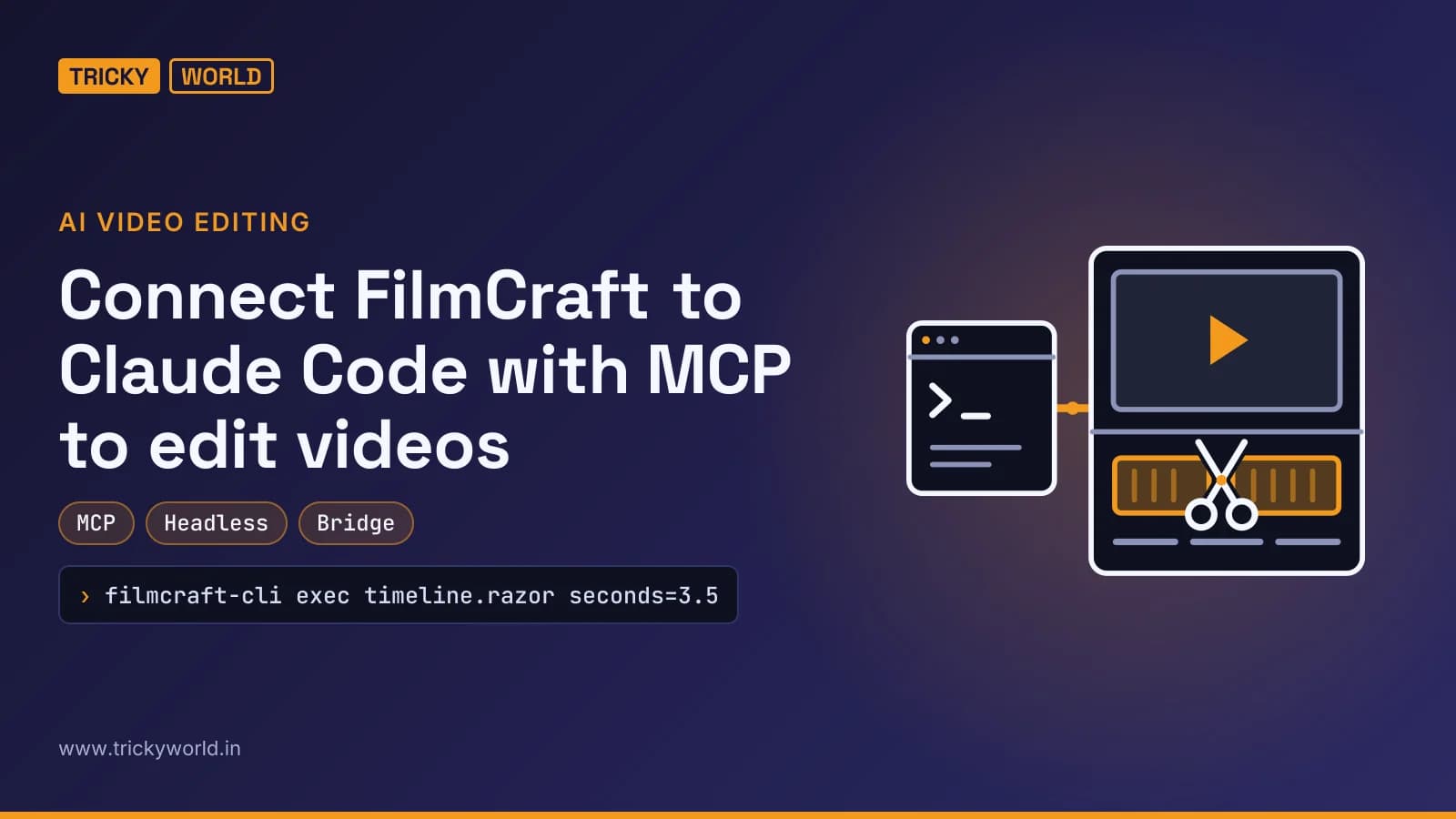
Ask an AI assistant to edit a video and, until recently, the best it could offer was an ffmpeg command and a polite suggestion to open your editor. FilmCraft changes that arrangement. It is a full non-linear video editor that exposes every button, slider and menu item as a named command, and it ships a server that hands those commands straight to an AI agent such as Claude Code.
Once the two are connected, Claude works on a real timeline. It imports media, places and trims clips, applies effects and keyframes, adds titles and captions, renders a frame to check its own work and exports the result. Every change lands in FilmCraft's undo history, so nothing the agent does is hidden or irreversible.
This guide covers the connection in full detail, from installing Claude Code to the first approved tool call. It then compares every way Claude can drive FilmCraft and walks through workflows you can copy, each with example prompts and the commands behind them. If you spend more time on repetitive timeline work than on creative decisions, this setup is worth an afternoon.
FilmCraft treats every edit as a command
FilmCraft is an open-source, native video editor from the team behind ArtCraft. It has the layout editors expect: source and program monitors, a multi-track timeline, colour grading with scopes, effects with keyframes, titles and captions, and an audio mixer with loudness meters. Compositing runs on the GPU through wgpu. The project describes itself as alpha software, and it is moving quickly.
The design choice that matters here is underneath the interface. Every action in FilmCraft is an engine command with an id, typed parameters and an enabled state. The razor tool is timeline.razor. Applying a Gaussian blur is effects.apply with effect: "gaussian_blur". Version 0.12.0 lists 701 of these commands, and the user interface, the command-line tool, a JSON control channel and the MCP server all dispatch the same ones.
filmcraft-cli commands blur
filmcraft-cli describe timeline.razor
filmcraft-cli exec timeline.razor seconds=3.5
The first line searches the command list for anything mentioning "blur". The second prints one command's menu location, shortcut and parameters as JSON. The third actually runs it, cutting the active sequence at 3.5 seconds. Because a human click and an agent's tool call go through the same command, the agent can do anything a person can do from the menus.
MCP gives Claude Code a set of hands inside the editor
The Model Context Protocol (MCP) is an open standard for connecting AI applications to outside tools. A program called an MCP server advertises a list of tools, each with a name, a description and a parameter schema. An MCP client, here Claude Code, discovers those tools and calls them when a task needs them. Think of it as a USB port for AI agents: one plug shape, many devices.
FilmCraft's server is built into its command-line tool and runs with filmcraft-cli mcp. It works in two modes, and choosing between them is the first real decision.
| Mode | Command Claude Code runs | What the agent controls | Best for |
|---|---|---|---|
| Headless | filmcraft-cli mcp | An invisible FilmCraft engine with no window | Batch jobs, servers, scripted exports |
| Bridge | filmcraft-cli --bridge 127.0.0.1:7878 mcp | The FilmCraft window open on your screen | Watching edits happen live, screenshots, clicking the real interface |
Three programs talk to each other, and each link can fail separately
Before typing any setup commands, it helps to see the chain. Almost every connection problem comes from one broken link, and knowing which link failed tells you which fix to apply.
You --prompt--> Claude Code --MCP over stdio--> filmcraft-cli mcp --JSON over TCP 127.0.0.1:7878--> FilmCraft windowRead it from left to right. You type a request into Claude Code. Claude Code launches filmcraft-cli itself, as a background child process, and talks to it through standard input and output. You never start the MCP server by hand during normal use. In bridge mode, filmcraft-cli forwards each tool call over a local network socket to the FilmCraft window, which must be listening on that port. In headless mode, the last link disappears, because filmcraft-cli runs the editing engine itself.
The first two links are set up once. The last link has to exist every time you want to edit live, because it depends on how the FilmCraft window was started.
Connect FilmCraft to Claude Code in eight steps
Step 1: Install Claude Code and sign in
Claude Code is a terminal application. Anthropic offers a native installer, and it is also published on npm for anyone who already uses Node.js.
curl -fsSL https://claude.ai/install.sh | bash

# or, with Node.js 18 or newer installed:
npm install -g @anthropic-ai/claude-code

claude --version
claude
The installer puts the claude command on your path, and claude --version confirms it worked. Running claude for the first time opens a browser window to sign in with a Claude subscription or an Anthropic Console account. After that, the same command opens an interactive session in whatever folder you run it from. It is worth creating a dedicated folder for video projects and starting Claude Code there, so its working files stay in one place.
Step 2: Install FilmCraft and locate filmcraft-cli
FilmCraft is available from its page on getartcraft.com and from the project's GitHub releases, with builds for Windows, macOS and Linux. On Ubuntu, the .deb package installs two programs: filmcraft, the desktop app, and filmcraft-cli, the headless runner that contains the MCP server and an exporter.
dpkg -s filmcraft | grep Version
which filmcraft-cli
filmcraft-cli --version
The first command confirms the installed version (0.12.0 at the time of writing). The second prints the full path of the CLI, which on Linux is /usr/bin/filmcraft-cli. Keep that path handy. Some apps, including Claude Desktop on macOS, do not inherit your terminal's search path and need the full location to launch the server.
Step 3: Prove the MCP server works before involving Claude
Testing the server by hand takes ten seconds and rules out half of all possible problems. The following sends the protocol's opening handshake, then asks for the tool list, exactly as Claude Code will.
printf '%s\n' \
  '{"jsonrpc":"2.0","id":1,"method":"initialize","params":{"protocolVersion":"2025-06-18","capabilities":{},"clientInfo":{"name":"test","version":"0"}}}' \
  '{"jsonrpc":"2.0","method":"notifications/initialized"}' \
  '{"jsonrpc":"2.0","id":2,"method":"tools/list"}' \
  | filmcraft-cli mcp
A healthy server prints two JSON replies. The first has a serverInfo block naming filmcraft and its version, plus a short instruction text for the agent. The second lists 17 tools, from command_batch to ui_type. If you see both, the server is fine, and any later failure is in the registration or in the link to the app.
Step 4: Choose a scope for the server
Claude Code stores each MCP server at one of three scopes. The scope decides who can use the server and in which folders.
| Scope | Flag | Who can use it | Where it is stored |
|---|---|---|---|
| Local (default) | --scope local | You, only in the current folder | ~/.claude.json, under that folder's entry |
| Project | --scope project | Everyone who clones the project | .mcp.json inside the project folder |
| User | --scope user | You, in every folder | ~/.claude.json, in the top-level mcpServers list |
For a desktop application like FilmCraft, user scope is the sensible choice: the editor is installed once, and you will want it available whichever folder your footage is in. Project scope makes sense for a team that keeps edit scripts in a shared Git repository.
Step 5: Register the server with Claude Code
There are three ways to add the server, and all of them produce the same result. The command-line method is the quickest.
claude mcp add --scope user filmcraft -- filmcraft-cli --bridge 127.0.0.1:7878 mcpThe word after the flags, filmcraft, is the name Claude Code will use for the server. Everything after the double dash is the exact command it will run to start the server. The port, 7878 here, is arbitrary, but it must match the port the FilmCraft window listens on in the next step. If you choose headless mode instead, drop the --bridge part and the command becomes filmcraft-cli mcp.
The second method passes the whole configuration as JSON, which is handy when you copy a setup from a colleague or from documentation:
claude mcp add-json --scope user filmcraft '{"type":"stdio","command":"filmcraft-cli","args":["--bridge","127.0.0.1:7878","mcp"]}'The third method is a file. Saving the following as .mcp.json in a project folder registers the server at project scope for anyone who opens that folder in Claude Code. Claude Code asks for approval the first time it finds a project-defined server, so a cloned repository cannot quietly start programs on your machine.
{
  "mcpServers": {
    "filmcraft": {
      "command": "filmcraft-cli",
      "args": ["--bridge", "127.0.0.1:7878", "mcp"]
    }
  }
}
Step 6: Start FilmCraft with its control channel switched on
This is the step most people miss, because bridge mode fails quietly. The MCP server starts without complaint even when no FilmCraft window is listening, so everything looks healthy until the agent makes its first call. Then it gets this:
bridge: cannot connect to 127.0.0.1:7878 (Connection refused (os error 111)); start the app with `filmcraft --control <port>`The message is accurate. A FilmCraft window started from the application menu does not open a control port. It has to be launched with the flag, or with the FILMCRAFT_CONTROL_PORT environment variable set to the port number.
filmcraft --control 7878
ss -ltn | grep 7878
The first line starts FilmCraft with a JSON control server on port 7878. The second confirms that something is listening there. If FilmCraft is already open without the flag, save your work, close it and reopen it this way. Typing the flag every time gets old, so on Linux it is worth making it permanent with a personal copy of the desktop launcher:
sed 's|^Exec=filmcraft %F|Exec=filmcraft --control 7878 %F|' \
  /usr/share/applications/ai.storyteller.filmcraft.desktop \
  > ~/.local/share/applications/ai.storyteller.filmcraft.desktop
Files in ~/.local/share/applications override the system copies, so the menu icon now opens FilmCraft with control mode on, and deleting that one file undoes the change. On Windows and macOS, add the flag to a shortcut or launch the app from a terminal. The control port listens only on 127.0.0.1, so other machines on your network cannot reach it.
Step 7: Restart Claude Code and confirm the connection
Claude Code loads MCP servers when a session starts. A session that was already open will not see a server you added a minute ago, so exit it and start a fresh one. Then check the registration from the terminal:
claude mcp list
claude mcp get filmcraft
The list shows every server Claude Code knows about, with a health check for each. The FilmCraft line should read filmcraft: filmcraft-cli --bridge 127.0.0.1:7878 mcp - ✔ Connected. The second command shows the scope, the command and any environment variables. Note what "Connected" means here: Claude Code started filmcraft-cli and completed the handshake. It does not prove that the FilmCraft window is reachable, because the bridge only dials the app when a tool is actually used.
Inside a session, the /mcp command opens a panel with the same information. If you sign in with a claude.ai account, that panel also lists any connectors from your account, such as Gmail or Google Drive, and they can push FilmCraft out of view. Servers from your own configuration appear further down the list, so scroll before assuming FilmCraft is missing.
Step 8: Make the first tool call and approve it
With FilmCraft open in control mode and a fresh Claude Code session running, a plain request is enough to test the full chain:
Use the FilmCraft tools to tell me what state the editor is in.Claude picks the ui_inspect tool, which Claude Code names mcp__filmcraft__ui_inspect: the prefix, then the server name, then the tool. By default, Claude Code asks for permission before running a tool from an MCP server, so you will see a prompt to allow it. Approve it, and the reply describes the open workspace, panels, timeline zoom and playback state. If that works, every link in the chain is working.
Approving each call gets tedious during a long edit. You can allow the whole server in your Claude Code settings file, ~/.claude/settings.json, or manage the same rules interactively with the /permissions command:
{
  "permissions": {
    "allow": ["mcp__filmcraft"]
  }
}
An entry with just the server name covers every tool that server provides. Every edit still lands in FilmCraft's undo history, so allowing the tools does not mean losing the ability to reverse what the agent did.
Optional setups that change how you work
Running headless and live side by side
Nothing stops you from registering both modes under different names. The live server is for interactive editing, and the headless one is for jobs that should not touch the open window, such as batch-exporting twenty clips overnight.
claude mcp add --scope user filmcraft-headless -- filmcraft-cli mcpIts tools appear as mcp__filmcraft-headless__command_run and so on, so there is no confusion about which engine receives a command. Two caveats apply. Each server adds 17 tools that Claude has to consider, so remove the one you are not using if sessions feel cluttered. And a headless engine starts with an empty project, so ask Claude to save its work with file.saveAs before the session ends.
Claude Desktop can use the same server
The MCP server is not tied to Claude Code. Claude Desktop, Anthropic's chat app for macOS and Windows, reads servers from a JSON file. On macOS it lives at ~/Library/Application Support/Claude/claude_desktop_config.json, and on Windows at %APPDATA%\Claude\claude_desktop_config.json.
{
  "mcpServers": {
    "filmcraft": {
      "command": "/full/path/to/filmcraft-cli",
      "args": ["--bridge", "127.0.0.1:7878", "mcp"]
    }
  }
}
Use the full path to the CLI, since desktop apps often do not see the same search path as your terminal. Restart Claude Desktop after editing the file. Claude Code remains the better fit for heavy editing, because it can also run ffmpeg, transcription and scripts alongside the FilmCraft tools.
Changing the port or removing the server
claude mcp remove filmcraft -s user
claude mcp add --scope user filmcraft -- filmcraft-cli --bridge 127.0.0.1:7979 mcp
Removing and re-adding is the simplest way to change any setting. If you move to port 7979, remember to start FilmCraft with --control 7979 and to update the launcher override too.
Connection problems map to a specific broken link
| Symptom | Broken link | Fix |
|---|---|---|
| FilmCraft tools missing from the session | Claude Code to server | Exit Claude Code and start a new session; check claude mcp list |
Server listed as failed in claude mcp list | Claude Code to server | Run the Step 3 test; use the full path to filmcraft-cli if it is not found |
| "cannot connect to 127.0.0.1:7878" | Server to app | Start FilmCraft with --control 7878 and confirm with ss -ltn |
| Port already in use | Server to app | Pick another port and change it in both the server command and the app flag |
| A permission prompt before every call | None; this is the default | Allow mcp__filmcraft in settings or through /permissions |
| Edits land in the wrong project | None | Bridge mode edits whatever project is open in the window; open the right one first |
The 17 tools Claude receives
Once connected, Claude Code sees 17 FilmCraft tools. They fall into five groups.
- Commands:
command_list,command_runandcommand_batch. These discover and run any of the 701 engine commands. A batch runs several in order, and each step is still its own undo step. - Inspection:
doc_inspect,project_inspectandsequence_inspectreturn the project tree and the timeline as JSON, including the ids that later commands need. - Media:
media_importbrings files into the project by absolute path. - Rendering:
render_frameandrender_previewreturn a PNG of the sequence at a given time. This is how the agent looks at its own work. - Live interface (bridge mode only):
ui_screenshot,ui_elements,ui_click,ui_drag,ui_key,ui_type,ui_inspectandui_control. Every widget has an automation id, so the agent can click and drag like a person when no command fits.
One detail trips up newcomers: FilmCraft measures time in ticks, 254,016,000,000 per second. The number looks absurd, but common frame rates and audio sample rates divide into it cleanly, so no timing error builds up from rounding. You rarely need to care, because most commands also accept seconds, frame or timecode.
A first session shows how prompts become commands
The easiest way to understand the workflow is to watch three plain-English requests turn into tool calls. Suppose the prompt is: "Import ~/Videos/interview.mp4 and make a vertical 1080 by 1920 sequence at 30 fps." Claude makes two calls.
media_import  {"paths": ["/home/you/Videos/interview.mp4"]}
              -> {"items": [1], "errors": []}

command_run   {"id": "file.newSequence",
               "params": {"name": "Short", "width": 1080, "height": 1920, "fps": 30}}
              -> {"sequence": 8}
The import returns an item id, 1, and the new sequence comes back as id 8. Those ids are the thread that ties a session together. The next request, "Put the first 20 seconds on the timeline and cut it at 7.5 seconds," uses item 1 directly.
command_run   {"id": "timeline.place",
               "params": {"item": 1, "track": "V1", "seconds": 0,
                          "sourceIn": 0, "duration": 5080320000000}}
command_run   {"id": "timeline.razor", "params": {"time": 1905120000000}}
The duration is 20 seconds expressed in ticks, and the razor time is 7.5 seconds. The third request, "Add the title DAY 1 at the top for three seconds and show me the frame," ends with render_frame. Claude receives the PNG, looks at it and reports whether the title is readable, which is how a human editor works too.
Five ways Claude can drive FilmCraft
MCP is the most convenient route, but it is not the only one. Claude Code can also run shell commands, write scripts and open network sockets, so it can reach FilmCraft through any of the editor's front doors. Each suits a different kind of job.
| Method | How Claude uses it | Best for |
|---|---|---|
| MCP, bridge mode | Tool calls into the open FilmCraft window | Interactive editing you want to watch and correct as it happens |
| MCP, headless mode | Tool calls into a windowless engine | Batch work and repeatable jobs that must not disturb the open project |
| One-shot CLI commands | Shell commands such as exec, inspect, render, export and probe | Quick checks and exports, with no MCP setup at all |
| JSONL command scripts | A file of commands run in order by filmcraft-cli run | Recipes you can save, review, share and rerun |
| The control channel | A small program sending JSON commands over the local port | Large builds with hundreds of commands that depend on each other's results |
One-shot CLI commands need no setup
Even without MCP, Claude Code can operate FilmCraft through its terminal. This is the fastest way to answer questions about media and projects, or to render a single frame for review.
filmcraft-cli probe ~/Videos/interview.mp4
filmcraft-cli --project ~/Videos/edit.fcproj inspect sequence
filmcraft-cli --project ~/Videos/edit.fcproj render --seconds 12 --out frame.png --scale 0.5
filmcraft-cli --project ~/Videos/edit.fcproj export final.mp4 --format h264
probe reports codec, resolution, frame rate and audio streams as JSON. inspect prints the timeline of a saved project, render writes one frame as a PNG at half size, and export renders the active sequence and waits for it to finish. Claude reads the JSON or looks at the PNG, then decides what to do next.
JSONL scripts turn an edit into a reusable recipe
A JSONL file holds one command per line, and filmcraft-cli run executes the lines in order. Lines starting with # are comments, and an export line waits for its file before the next line runs. This makes a good format for anything you repeat every week, such as a standard intro, an end card or a set of export formats.
# weekly-vertical.jsonl
{"id": "file.import", "params": {"paths": ["/home/you/Videos/episode.mp4"]}}
{"id": "file.newSequence", "params": {"name": "Vertical", "width": 1080, "height": 1920, "fps": 30}}
{"id": "timeline.place", "params": {"item": 1, "track": "V1", "seconds": 0}}
{"id": "effects.apply", "params": {"effect": "auto_reframe"}}
{"id": "file.exportMedia", "params": {"path": "/home/you/Videos/episode-vertical.mp4", "format": "h264", "loudnessLufs": -14}}
filmcraft-cli --save-as ~/Videos/episode-vertical.fcproj run weekly-vertical.jsonl
filmcraft-cli --bridge 127.0.0.1:7878 run weekly-vertical.jsonlThe first command runs the recipe headlessly and saves the finished project. The second runs the same file inside the open FilmCraft window, so you can watch it work. The limitation of scripts is that a line cannot use the result of an earlier one. That is fine for a fresh project, where the first import is always item 1, but it falls apart once ids depend on earlier steps. That is where the control channel comes in.
The control channel handles builds with hundreds of commands
The control channel is the same local port the bridge uses, carrying plain JSON lines. A short Python driver, which Claude can write for you, sends each command and reads back its result, so new clip ids flow straight into the next command.
import json, socket

sock = socket.create_connection(("127.0.0.1", 7878))
stream = sock.makefile("rwb")

def run(command, **params):
    request = {"id": 1, "method": "engine.execute",
               "params": {"command": command, "params": params}}
    stream.write((json.dumps(request) + "\n").encode())
    stream.flush()
    reply = json.loads(stream.readline())
    if not reply["ok"]:
        raise RuntimeError(reply["error"])
    return reply["result"]

T = 254016000000  # ticks per second
video, audio = run("timeline.place", item=1, track="V2", audioTrack="A1",
                   seconds=0, sourceIn=int(12.0 * T), duration=int(3.0 * T))["clips"]
run("effects.apply", clips=[video], effect="auto_reframe")
run("effects.setParam", clip=video, effect="auto_reframe", param="zoom",
    value=110, time=0, keyframe=True)
The run function sends one command and returns its result, or stops loudly if FilmCraft refuses it. The example places three seconds of the source, starting 12 seconds in, at the start of the timeline with its audio on A1. It then switches on Auto Reframe and sets a zoom keyframe on the clip that the first command just created. A driver like this can place dozens of shots with effects, transitions and text in a few minutes, while the FilmCraft window updates in front of you.
Workflows worth handing to Claude
Turn a long horizontal video into a vertical Short
This is the most complete workflow, and it shows how Claude combines FilmCraft with other tools. The prompt can be as simple as "Analyse ~/Videos/stream.mp4, research what keeps people watching Shorts, and build a 30-second vertical Short in FilmCraft." A good run goes through seven stages.
1. Research. Claude can search the web for current retention advice before it cuts anything. The recurring guidance is consistent: put the hook in the first three seconds, keep most Shorts between 15 and 35 seconds, caption everything for sound-off viewing, change the picture every few seconds, and end without an outro so the video loops. In an Adobe Express survey of 507 creators, 46 percent picked under 30 seconds as the ideal length. Much of this advice comes from creator blogs, so treat it as a starting point rather than a law.
2. Look at the footage. Claude cannot press play. It reads images, so it turns the video into contact sheets, which are grids of frames with timestamps, and uses scene-change detection to find the cuts.
ffmpeg -i stream.mp4 -vf "fps=1/5,scale=320:-1,tile=6x4" -frames:v 5 sheet_%02d.pngThis samples one frame every five seconds, shrinks each to 320 pixels wide and tiles 24 of them per image. A denser pass at one frame per second over the interesting section shows exactly where each moment starts and ends.
3. Find the words. For anything with speech, Claude can install the open-source faster-whisper recogniser and transcribe locally with word-level timestamps. Background music can confuse it. If the transcript comes back with one impossibly long "sentence", transcribing short windows of 20 to 30 seconds with voice-activity filtering switched off usually recovers the lines. Burned-in subtitles in the picture are a useful cross-check for names.
4. Plan the edit. Before touching the timeline, Claude writes an edit decision list: which source range goes where, and why. A structure that works for most Shorts looks like this.
| Section | Typical length | What goes there | FilmCraft commands that help |
|---|---|---|---|
| Hook | 0 to 3 s | The strongest line or image, with curiosity-building text on screen | graphics.newText, graphics.setCharStyle |
| Pattern interrupt | 1 to 3 s | Fast cuts, a flash or a shake to reset attention | sequence.applyVideoTransition with flash, camera_shake |
| Context | 3 to 8 s | Who or what this is about, in as few shots as possible | timeline.place, captions |
| Build | 10 to 15 s | One idea per cut, slow push-in zooms on emotional shots | effects.setParam with keyframes, lumetri |
| Payoff | 3 to 5 s | The moment the viewer stayed for | Sound effects on a second audio track |
| Loop | 1 to 2 s | A last shot that flows back into the hook | No outro and no end screen |
5. Build it. Landscape footage needs a vertical layout. A reliable one uses four video tracks. V1 holds a copy of each shot scaled up, heavily blurred with gaussian_blur and darkened, so the frame is never black. V2 holds the shot with auto_reframe, which tracks the subject and crops a portrait window. V3 holds the hook and a persistent header in the top band, and V4 holds captions of two or three words each. Game or voice audio sits on A1, with short constant_power crossfades at every cut, and sound effects sit on A2.
6. Review it like an editor. A build that runs without errors is not a good edit. Claude renders frames from across the timeline at a third of full size and checks them as a contact sheet. Typical problems at this stage are text running too close to the edges, a shot that lands on a motion-blurred frame (timeline.slip moves the source by a few frames to fix it), a first frame with no caption, and emoji that FilmCraft's title engine cannot draw. Caption pop-ins, scaling from about 75 to 108 to 100 percent over five frames, add the bounce viewers expect.
7. Export and verify. file.exportMedia with loudnessLufs: -14 matches the level YouTube plays back at. Then measure rather than assume: check the overall loudness, check the level of each section separately, and transcribe the exported file to confirm the dialogue is audible and in sync with the captions.
Add captions to a talking-head video
Captions are the job most creators put off, and they are an easy win. Ask Claude to "transcribe interview.mp4, add styled captions and export a version with them burned in." It transcribes with Whisper and writes a standard SRT file:
from faster_whisper import WhisperModel

def ts(t):
    h, rem = divmod(t, 3600)
    m, s = divmod(rem, 60)
    return f"{int(h):02}:{int(m):02}:{s:06.3f}".replace(".", ",")

model = WhisperModel("small", device="cpu", compute_type="int8")
segments, _ = model.transcribe("interview.wav")
with open("interview.srt", "w") as f:
    for i, seg in enumerate(segments, 1):
        f.write(f"{i}\n{ts(seg.start)} --> {ts(seg.end)}\n{seg.text.strip()}\n\n")
The ts function formats seconds as SRT's HH:MM:SS,mmm timecode, and the loop writes one numbered caption per spoken segment. FilmCraft then imports and styles the file, and the export burns it in or writes it alongside the video:
command_run  {"id": "captions.import", "params": {"path": "/home/you/Videos/interview.srt", "name": "English"}}
command_run  {"id": "captions.setStyle",
              "params": {"track": "C1", "font": "Inter", "size": 64, "color": "#FFFFFF",
                         "outline": 4, "anchor": "bottom", "margin": 0.12}}
command_run  {"id": "file.exportMedia",
              "params": {"path": "/home/you/Videos/interview-captioned.mp4", "format": "h264",
                         "burnCaptions": true}}
Swap "burnCaptions": true for "captionSidecar": "srt" to keep the captions as a separate file that viewers can switch off.
Make a rough cut from a transcript
Word-level timestamps make it possible to edit speech by text. A prompt such as "Remove every pause longer than 0.7 seconds and the filler words from this tutorial" works like this. Claude reads the transcript, picks the ranges to keep, and places them back to back on a new sequence.
command_run  {"id": "timeline.place", "params": {"item": 1, "track": "V1", "seconds": 0,
                                                  "sourceIn": 1016064000000, "duration": 2032128000000}}
command_run  {"id": "timeline.place", "params": {"item": 1, "track": "V1", "seconds": 8,
                                                  "sourceIn": 3302208000000, "duration": 1524096000000}}
The first call keeps 8 seconds starting at the 4-second mark of the source. The second keeps the next 6 seconds of useful speech, starting at 13 seconds, placed immediately after. The original recording is never changed, so a cut that removes too much is a single undo or a re-placement away.
Grade every clip the same way
Matching colour across a dozen clips is tedious by hand. Claude reads every clip id from sequence_inspect, applies Lumetri Color to all of them in one call, then sets identical values on each.
command_run  {"id": "effects.apply", "params": {"clips": [12, 15, 18, 21], "effect": "lumetri"}}
command_run  {"id": "effects.setParam", "params": {"clip": 12, "effect": "lumetri", "param": "temperature", "value": -10}}
command_run  {"id": "effects.setParam", "params": {"clip": 12, "effect": "lumetri", "param": "saturation", "value": 85}}
The last two lines repeat for each clip id. Lumetri exposes the usual controls, including exposure, contrast, highlights, shadows, temperature, tint, saturation and curves. A vignette or a film-style look is one more effects.apply away.
Export several versions in one go
Most videos end up in more than one place. Headless exports from a saved project are easy to script, and Claude can write the loop for you.
filmcraft-cli export --list-presets
P=~/Videos/edit.fcproj
filmcraft-cli --project $P export edit-full.mp4 --format h264
filmcraft-cli --project $P export edit-preview.mp4 --format h264 --scale 0.5
filmcraft-cli --project $P export edit-master.mov --format prores
filmcraft-cli --project $P export edit-audio.wav --format wav
The first line lists the built-in and user export presets, which can be used with --preset instead of a format. The rest produce a full-size H.264 file, a half-size preview for quick review, a ProRes master for archiving and a WAV of the mix.
Use the interface itself when no command fits
Bridge mode adds tools that operate the real interface. ui_elements lists every clickable element with an id and position. ui_click, ui_drag, ui_key and ui_type operate them, and ui_screenshot shows the result, optionally cropped to one panel such as the Timeline. These are slower than commands, but useful for checking how a project looks to a human, testing a layout or reaching an option before you have found its command id.
Editing problems you are likely to hit, with fixes
- If an export has picture but no sound, export a few seconds as WAV and measure the level. In version 0.12.0, some AAC soundtracks decoded as silence. Converting the source audio to PCM in a MOV with
ffmpeg -i in.mp4 -c:v copy -c:a pcm_s16le -ar 48000 out.mov, then pointing the project at it withmedia.replaceFootage, fixes it without moving a single edit. - If emoji in on-screen text show up as boxes, keep emoji for the YouTube title and description and use plain text inside the video.
- If the CLI rejects export settings with "unknown key", pass options such as
loudnessLufsandcrfas top-level parameters offile.exportMediarather than inside asettingsobject. - If renders crawl, check your work with
render --scale 0.333frame previews and audio-only exports, and save the full render for when the edit is locked. Heavy effects such as Auto Reframe and large blurs on every frame of a 60 fps vertical video can bring export speed below two frames per second. - If trimming the start of a text clip earlier does nothing, move the clip to the new start time and trim its end instead.
- If slipping a video clip moves its audio but not a background copy on another track, slip the background separately, because only linked clips move together.
What still needs a human
This workflow removes the mechanical part of editing, not the judgement. Claude cannot hear the mix, so audio quality is checked through measurements and transcription rather than by ear, and a person should still listen once before publishing. Taste matters too. The agent can apply retention rules and match a reference style, but whether a moment deserves a joke, a sound effect or silence is an editorial call.
Rights are the other limit. Game footage, film clips and commercial music are copyrighted, and Shorts built from them often receive Content ID claims, which usually send the ad revenue to the rights holder. Finally, FilmCraft is alpha software, so every output should be verified, not assumed.
Frequently asked questions
Is FilmCraft free?
Yes. It is open source, and the Linux package ships Apache and MIT licence files.
What do I need to use Claude Code?
A Claude subscription or an Anthropic Console account, plus a terminal. The FilmCraft MCP server itself costs nothing and runs entirely on your machine.
Do I need the FilmCraft window open?
Only in bridge mode. Headless mode, filmcraft-cli mcp, runs the full engine without a window, which suits batch work.
Why does Claude Code say "Connected" when the tools still fail?
"Connected" means Claude Code started filmcraft-cli and completed the MCP handshake. The bridge only contacts the FilmCraft window when a tool runs, so a window started without --control shows up as an error on the first call, not in the status check.
Is the control port a security risk?
It listens only on 127.0.0.1, so it is reachable from your own machine and not from your network. Anything running locally as your user could still send it commands, so close FilmCraft or restart it without the flag when you are not using the agent.
Can Claude actually see the video?
It sees still frames, either from FilmCraft's render tools and screenshots or from contact sheets made with ffmpeg. It cannot listen, so speech comes from a transcription model and audio levels from meters.
Does this work on Windows and macOS?
FilmCraft runs natively on Windows, macOS and Linux, and Claude Code runs on all three. Check that your FilmCraft build includes <code>filmcraft-cli</code>, since that is where the MCP server lives.
Can I undo what the agent did?
Yes. Agent edits go through the same commands as manual ones and appear in FilmCraft's History, with each step of a batch as its own undo step.
How long did the case study take?
A little over an hour from a blank project to the final file. That included the research, transcription, troubleshooting and a 19-minute export.

Vishal writes Trickyworld's tutorials and interview-preparation guides on programming, databases, cyber security and AI. Vishal has been shipping production software long enough to have firm opinions about Python, PHP, Node.js, and JavaScript, and to have been wrong about each of them at least once. The work has run the whole stack: Drupal and Laravel applications, React front ends, MySQL and MongoDB underneath, Redis and Memcached for the things that had to be fast, Apache Solr for the things that had to be findable. That last part turned out to matter more than anyone expected. Tune a Solr index for a season, then watch a language model confidently retrieve the wrong document, and you recognise an old problem wearing new clothes. Most of what is hard about AI systems is not the model. It is retrieval, caching, latency budgets, and deciding what the system does when the answer comes back wrong — which is work he has been doing since well before anyone called it AI engineering. He plays a lot of games, which is less a hobby disclosure than an admission of where a good share of his engineering instinct came from. Real-time systems with a frame budget. State that has to stay coherent while a player does something no designer anticipated. The permanent question of what happens when the frame cannot finish in time. Those habits carry over more directly than they have any right to. He has written several books on programming, all built on the same conviction: most technical writing is unclear because the author never decided what to leave out. More from Vishal → · Editorial policy